

Generative AI tools like ChatGPT and Gemini can be a big help when dealing with data in spreadsheets. In this third of a series of posts from a workshop at the Centre for Investigative Journalism Summer School (the first part covered idea generation; the second research), I outline tips and techniques for using those tools to help with spreadsheet formulae and reshaping data.
Whether you come across data as part of story research, or compile data yourself, chances are that at some point you will need to write a formula to ask questions of that data, or make it possible to ask questions (such as creating a column which extracts data from another).
If you find yourself coming up against the limits of your spreadsheet knowledge, then genAI tools can be useful both in breaking through those — while expanding your knowledge of functions and formula writing.
Writing spreadsheet formulae with ChatGPT or other genAI tools
A good prompt for a spreadsheet formula should:
- Specify which column(s) or cell(s) you need the formula to work with
- Paste examples of the data in those cells, representing their variety
- Describe what the output should look like
- Specify any functions you’d prefer to use or avoid, and if you prefer to minimise ‘nesting’ (where one formula is nested inside another) or complexity
- I would also recommend iterating beyond the first response, to get it to improve or elaborate on its first response.
Here’s an example of a prompt which incorporates all those:
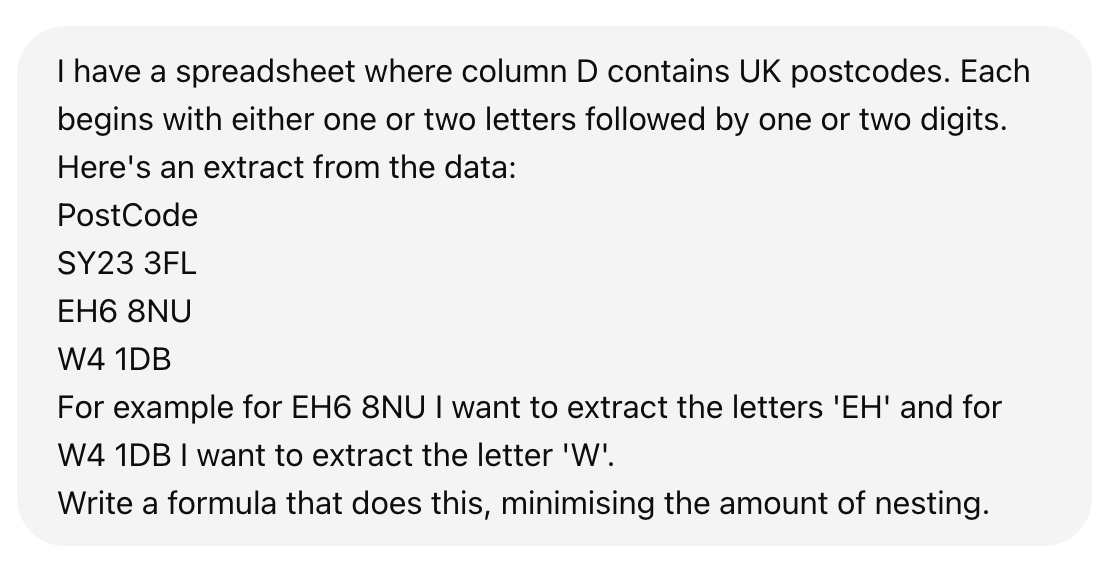
ChatGPT, Gemini and Claude will all provide explanations alongside the suggested formula. This is well worth reading as it can help you improve your own skills with spreadsheets, as well as troubleshoot any problems you might have — and you can ask further questions to help understand better.
Formulae suggested by GenAI tools tend to be more complex than necessary, so a follow-up prompt to “reduce nesting” can help to simplify it.
You might also ask it to split the process into more than one formula so that it’s easier to understand.
Making the most of Google Sheets’ built-in AI
You don’t have to go to ChatGPT for help with spreadsheet formulae — since 2021 Google Sheets has included ‘Formula Suggestions‘, which tries to understand what you’re trying to do and suggesting a formula which will achieve that.
You can make these suggestions more effective by making sure headings are labelled effectively first.
For example, if your column is headed ‘total’, then when you start typing a formula underneath, Google Sheets will suggest a SUM formula that covers the range of all numerical cells in that row.
But it can be cleverer than that. Title a column ‘percentage change‘ and it’s more likely to suggest a formula that performs the calculation that you need. Title it ‘percentage change since 2019’ or ‘crimes per capita‘ and it’ll do better in suggesting which columns the formula should target (if they are titled ‘2019’, ‘crimes’, ‘population’ etc.).
Always check any suggested formula: there is no guarantee that it has correctly understood either your data or the calculation you intended to make. In short, this functionality is best used where you already know the formula you want to write and are confirming with Google Sheets that it has anticipated that correctly.
Some of Google Sheets’ AI functionality can get in the way. When you create a new pivot table, for example, it will include some AI-suggested queries on the right. Although these can be helpful, they can also push the pivot table building tools so far down that it takes longer to create your own pivot.
Similarly, when creating a table its suggestions to create dropdown menus (or “chips”) can be counter-productive, and it will try to find names of files and contacts when you use the @ symbol (“smart chips“).
You can turn these and other suggestions off in the Tools > Suggestion controls menu

Bringing Claude into Google Sheets
As well as Google Sheets’ built-in AI functionality, you can add further functionality with extensions. The Claude for Sheets extension, for example “integrates Claude into Google Sheets, allowing you to execute interactions with Claude directly in cells.” That opens up possibilities like classifying data or supplementing it (e.g. “the capital of the country in the next cell”).
Again, there are significant risks to consider with this use of genAI. Classification techniques like sentiment analysis have significant challenges, and supplementary data can be hallucinated, incorrect or out of date.
As a result this is best used as a filtering technique to surface potentially interesting leads, which are then checked, rather than the source of definitive information.
Reshaping data with generative AI
Sometimes the problem you face is a need to ‘reshape’ data because its current structure means it is difficult to ask questions or visualise — for example because data (e.g. year) is stored in headings rather than in cells.
GenAI tools can also be useful on this front — either by suggesting code, or by reshaping the data itself (the FT’s Climate Graphic newsletter mentions one example of this).
Some tips to bear in mind when writing prompts for reshaping include:
- Ask it to reshape from ‘wide to long’ (most common) or ‘long to wide’
- Specify the shape that the resulting data should have (i.e. which columns)
- Specify which column headings you want to convert to cell data (e.g. it’s likely column headings will contain some information such as the year that you want to put in cells instead)
- Consider dropping columns from the results
- If the data is especially large and you cannot include or check it all, ask it to include code that allows you to reshape the data yourself (it will probably do this anyway)
Here’s an example of a reshaping prompt:

The response should include a table that you can copy and paste into a spreadsheet — and if you’re using Google Gemini it offers the ability to export to Google Sheets.
It is absolutely essential to check the results match the original data. One way to do this is to create a pivot table using the reshaped data in a spreadsheet so that it’s back in the ‘wide’ format it started in, and you can compare it to the original.
You should also double-check each specific figure you plan to use in a story against the original data (this is just good practice in data journalism generally).
If the data is too large to easily check, then I would advise against using genAI for reshaping the data itself. The code it suggests, however, could help in the reshaping process in R or Python.
Cleaning a spreadsheet with headings across multiple rows
Another common problem that journalists encounter with data is spreadsheets where the headings aren’t on one row (as they should be).
For example, one row might contain the years that each column relates to, while the second row might contain the categories. This means category headings are repeated instead of incorporating the information in the row above (e.g. ‘arrests 2023’ and ‘arrests 2024’).

Trying to tackle this problem with genAI results in limited success when pasting the rows — but uploading a spreadsheet with just those header rows produces much better results.
A prompt you can adapt alongside the uploaded file might read like this:
This spreadsheet has headers split across the first two rows. Can you create a new header row which combines the information from those two rows.
ChatGPT and Claude both handled this particular data especially well (Gemini currently doesn’t allow you to upload CSV files): both were able to understand that the blank cell in the first column meant something different to the blank cells in the columns following the years, so that the years were carried forward to each of the three categories underneath.

Once it gets it right (you can use follow-up prompts to ask it to fix any mistakes), you can use a follow-up prompt like this:
Present that new header row in a [markdown] format that I can copy and paste into a spreadsheet.
A markdown formatted table can be easily copied and pasted. However, when I tried this it was less accurate in the cleaning. Omitting the word ‘markdown’ will probably result in a comma-separated list of headings, which can be converted to a row using the split cells into columns options in Excel/Google Sheets.
Have you used generative AI to help with any spreadsheet challenges? Please let me know in the comments.
 Online Journalism Blog
Pingback: Online Journalism Blog: Using generative AI as a spreadsheet and data cleaning assistant | ResearchBuzz: Firehose