Tag Archives: google refine

Fragments: Glueing Different Data Sources Together With Google Refine

I’m working on a new pattern using Google Refine as the hub for a data fusion experiment pulling together data from different sources. I’m not sure how it’ll play out in the end, but here are some fragments….

Grab Data into Google Refine as CSV from a URL (Proxied Google Spreadsheet Query via Yahoo Pipes)

Firstly, getting data into Google Refine… I had hoped to be able to pull a subset of data from a Google Spreadsheet into Google Refine by importing CSV data obtained from the spreadsheet via a query generated using my Google Spreadsheet/Guardian datastore explorer (see Using Google Spreadsheets as a Database with the Google Visualisation API Query Language for more on this) but it seems that Refine would rather pull the whole of the spreadsheet in (or at least, the whole of the first sheet (I think?!)).

Instead, I had to tweak create a proxy to run the query via a Yahoo Pipe (Google Spreadsheet as a database proxy pipe), which runs the spreadsheet query, gets the data back as CSV, and then relays it forward as JSON:

Here’s the interface to the pipe – it requires the Google spreadsheet public key id, the sheet id, and the query… The data I’m using is a spreadsheet maintained by the Guardian datastore containing UK university fees data (spreadsheet.

You can get the JSON version of the data out directly, or a proxied version of the CSV, as CSV via the More options menu…

Using the Yahoo Pipes CSV output URL, I can now get a subset of data from a Google Spreadsheet into Google Refine…

Here’s the result – a subset of data as defined by the query:

We can now augment this data with data from another source using Google Refine’s ability to import/fetch data from a URL. In particular, I’m going to use the Yahoo Pipe described above to grab data from a different spreadsheet and pass it back to Google Refine as a JSON data feed. (Google spreadsheets will publish data as JSON, but the format is a bit clunky…)

To test out my query, I’m going to create a test query in my datastore explorer using the Guardian datastore HESA returns (2010) spreadsheet URL (http://spreadsheets1.google.com/spreadsheet/ccc?hl&key=tpxpwtyiYZwCMowl3gNaIKQ#gid=0) which also has a column containing HESA numbers. (Ultimately, I’m going to generate a URL that treats the Guardian datastore spreadsheet as a database that lets me get data back from the row with a particular HESA code column value. By using the HESA number column in Google Refine to provide the key, I can generate a URL for each institution that grabs its HESA data from the Datastore HESA spreadsheet.)

Hit “Preview Table Headings”, then scroll down to try out a query:

Having tested my query, I can now try the parameters out in the Yahoo pipe. (For example, my query is select D,E,H where D=21 and the key is tpxpwtyiYZwCMowl3gNaIKQ; this grabs data from columns D, E and H where the value of D (HESA Code) is 21). Grab the JSON output URL from the pipe, and use this as a template for the URL template in Google Refine. Here’s the JSON output URL I obtained:

http://pipes.yahoo.com/pipes/pipe.run?_id=4562a5ec2631ce242ebd25a0756d6381
&_render=json&key=tpxpwtyiYZwCMowl3gNaIKQ
&q=select+D%2CE%2CH+where+D%3D21

Remember, the HESA code I experiment with was 21, so this is what we want to replace in the URL with the value from the HESA code column in Google Refine…

Here’s how we create the URLs built around/keyed by an appropriate HESA code…

Google Refine does its thing and fetches the data…

Now we process the JSON response to generate some meaningful data columns (for more on how to do this, see Tech Tips: Making Sense of JSON Strings – Follow the Structure).

First say we want to create a new column based on the imported JSON data:

Then parse the JSON to extract the data field required in the new column.

For example, from the HESA data we might extract the Expenditure per student /10:

value.parseJson().value.items[0]["Expenditure per student / 10"]

or the Average Teaching Score (value.parseJson().value.items[0]["Average Teaching Score"]):

And here’s the result:

So to recap:

– we use a Yahoo Pipe to query a Google spreadsheet and get a subset of data from it;
– we take the CSV output from the pipe and use it to create a new Google Refine database;
– we note that the data table in Google Refine has a HESA code column; we also note that the Guardian datastore HESA spreadsheet has a HESA code column;
– we realise we can treat the HESA spreadsheet as a database, and further that we can create a query (prototyped in the datastore explorer) as a URL keyed by HESA code;
– we create a new column based on HESA codes from a generated URL that pulls JSON data from a Yahoo pipe that is querying a Google spreadsheet;
– we parse the JSON to give us a couple of new columns.

And there we have it – a clunky, but workable, route for merging data from two different Google spreadsheets using Google Refine.

Data for journalists: JSON for beginners

Following the post earlier this week on XML and RSS for journalists I wanted to look at another important format for journalists working with data: JSON.

JSON is a data format which has been rising in popularity over the past few years. Quite often it is offered alongside – or instead of – XML by various information services, such as Google Maps, the UK Postcodes API and the Facebook Graph API.

Because of this, in practice JSON is more likely to be provided in response to a specific query (“Give me geographical and political data about this location”) than a general file that you access (“Give me all geographical data about everywhere”).

I’ll describe how you supply that query below. Continue reading

Getting full addresses for data from an FOI response (using APIs)

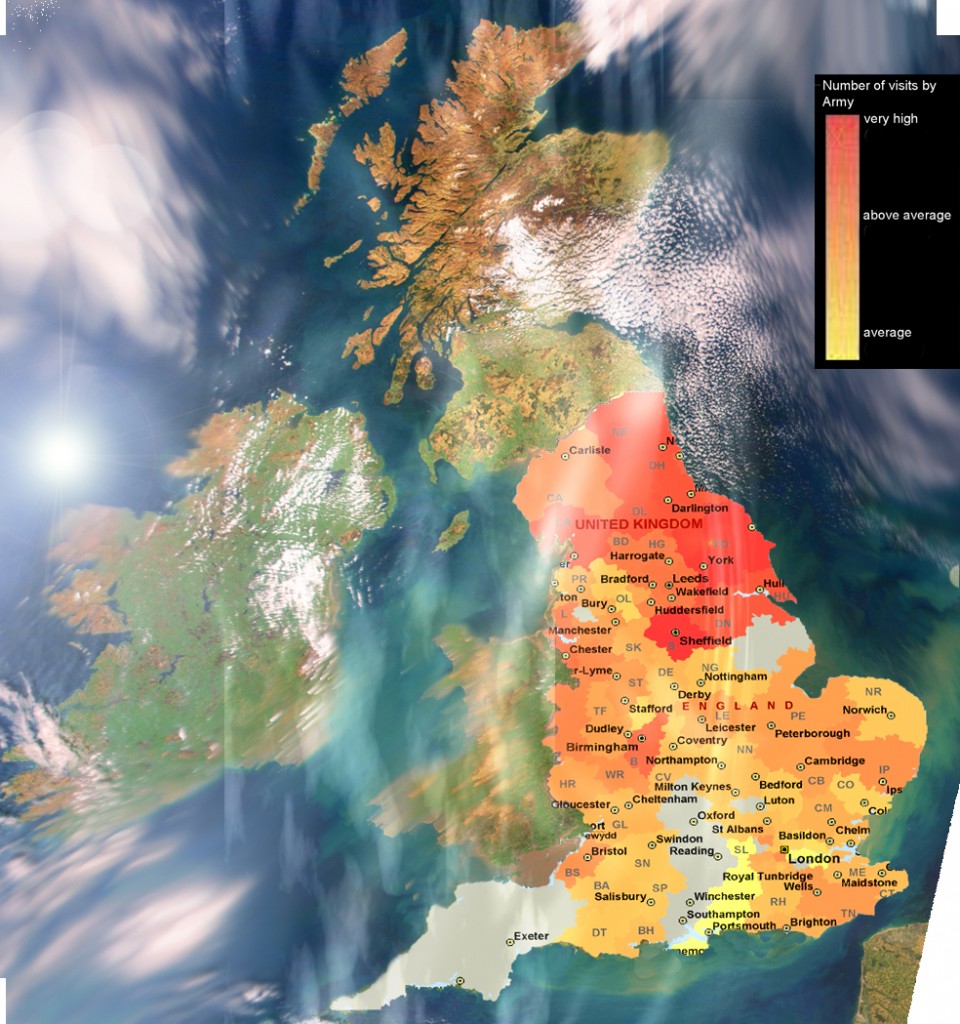
heatfullcolour11-960x1024

Here’s an example of how APIs can be useful to journalists when they need to combine two sets of data.

I recently spoke to Lincoln investigative journalism student Sean McGrath who had obtained some information via FOI that he needed to combine with other data to answer a question (sorry to be so cryptic).

He had spent 3 days cleaning up the data and manually adding postcodes to it. This seemed a good example where using an API might cut down your work considerably, and so in this post I explain how you make a start on the same problem in less than an hour using Excel, Google Refine and the Google Maps API.

Step 1: Get the data in the right format to work with an API

APIs can do all sorts of things, but one of the things they do which is particularly useful for journalists is answer questions. Continue reading

Now corporations get the open data treatment

OpenCorporates __ The Open Database Of The Corporate World

In September I blogged about Chris Taggart’s website Open Charities, which opened up data from the Charity Commission website.

Today Taggart – along with Rob McKinnon – launches Open Corporates, which opens up companies information. This is a huge undertaking, but a vital one. As the site’s About page explains:

“Few parts of the corporate world are limited to a single country, and so the world needs a way of bringing the information together in a single place, and more than that, a place that’s accessible to anyone, not just those who subscribe to proprietary datasets.”

Taggart and McKinnon are well placed to do this. In addition to charities data, Taggart has created websites that make it easier to interrogate council spending data and hyperlocal websites; McKinnon has done the same for the New Zealand parliament and UK lobbying.

Below is a video explaining how you can interrogate data from the site using Google Refine. The site promises an API soon.

Adding geographical information to a spreadsheet based on postcodes – Google Refine and APIs

If you have a spreadsheet containing geographical data such as postcodes you may want to know what constituency they are in, or convert them to local authority. That was a question that Bill Thompson asked on Twitter this week – and this is how I used Google Refine to do that: adding extra columns to a spreadsheet with geographic information.

You can watch a video tutorial of this here.

1. Find a website that gives information based on a postcode

First, I needed to find an API which would return a page of information on any postcode in JSON…

If that sounds like double-dutch, don’t worry, try this instead.

Translation: First, I needed either of these websites: http://www.uk-postcodes.com/ or http://mapit.mysociety.org/

Both of these will generate a page giving you details about any given postcode. The formatting of these pages is consistent, e.g.

(The first removes the space between the two parts of the postcode, and adds .json; the second replaces the space with %20 – although I’m told by Matthew Somerville that it will work with spaces and postcodes without spaces)

This information will be important when we start to use Google Refine…

2. Create a new column that has text in the same format as the webpages you want to fetch

In Google Refine click on the arrow at the top of your postcode column and follow the instructions here to create a new column which has the same postcode information, but with no spaces. To replace the space with %20 instead you would replace the express with

value.split(" ").join("%20")

Let’s name this column ‘SpacesRemoved’ and click OK.

Now that we’ve got postcodes in the same format as the webpages above, we can start to fetch a bunch of code giving us extra information on those postcodes.

3. Write some code that goes to a webpage and fetches information about each postcode

In Google Refine click on the arrow at the top of your ‘SpacesRemoved’ column and create a new column by selecting ‘Edit column’ > ‘Add column by fetching URLs…’

You can read more about this functionality here.

This time you will type the expression:

"http://www.uk-postcodes.com/postcode/"+value+".json"

That basically creates a URL that inserts ‘value’ (the value in the previous column) where you want it.

Call this column ‘JSON for postcode’ and click OK.

Each cell will now be filled with the results of that webpage. This might take a while.

4. Write some code that pulls out a specific piece of information from that

In Google Refine click on the arrow at the top of your ‘SpacesRemoved’ column and create a new column by selecting ‘Edit column’ > ‘Add column based on this column…’

Write the following expression:

value.parseJson()["administrative"]["district"]["title"]

Look at the preview as you type this and you’ll see information become more specific as you add each term in square brackets.

Call this ‘Council’ and click OK.

This column will now be populated with the council names for each postcode. You can repeat this process for other information, adapting the expression for different pieces of information such as constituency, easting and northing, and so on.

5. Export as a standard spreadsheet

Click Export in the top right corner and save your spreadsheet in the format you prefer. You can then upload this to Google Docs and share it publicly.

Other possibilities

Although this post is about postcode data you can use the same principles to add information based on any data that you can find an API for. For example if you had a column of charities you could use the Open Charities API to pull further details (http://opencharities.org/info/about). For local authority data you could pull from the OpenlyLocal API (http://openlylocal.com/info/api).

If you know of other similarly useful APIs let me know.

Adding geographical information to a spreadsheet based on postcodes – Google Refine and APIs

If you have a spreadsheet containing geographical data such as postcodes you may want to know what constituency they are in, or convert them to local authority. That was a question that Bill Thompson asked on Twitter this week – and this is how I used Google Refine to do that: adding extra columns to a spreadsheet with geographic information.

You can watch a video tutorial of this here.

1. Find a website that gives information based on a postcode

First, I needed to find an API which would return a page of information on any postcode in JSON…

If that sounds like double-dutch, don’t worry, try this instead.

Translation: First, I needed either of these websites: http://www.uk-postcodes.com/ or http://mapit.mysociety.org/

Both of these will generate a page giving you details about any given postcode. The formatting of these pages is consistent, e.g.

(The first removes the space between the two parts of the postcode, and adds .json; the second replaces the space with %20 – although I’m told by Matthew Somerville that it will work with spaces and postcodes without spaces)

This information will be important when we start to use Google Refine…

2. Create a new column that has text in the same format as the webpages you want to fetch

In Google Refine click on the arrow at the top of your postcode column and follow the instructions here to create a new column which has the same postcode information, but with no spaces. To replace the space with %20 instead you would replace the express with

value.split(" ").join("%20")

Let’s name this column ‘SpacesRemoved’ and click OK.

Now that we’ve got postcodes in the same format as the webpages above, we can start to fetch a bunch of code giving us extra information on those postcodes.

3. Write some code that goes to a webpage and fetches information about each postcode

In Google Refine click on the arrow at the top of your ‘SpacesRemoved’ column and create a new column by selecting ‘Edit column’ > ‘Add column by fetching URLs…’

You can read more about this functionality here.

This time you will type the expression:

"http://www.uk-postcodes.com/postcode/"+value+".json"

That basically creates a URL that inserts ‘value’ (the value in the previous column) where you want it.

Call this column ‘JSON for postcode’ and click OK.

Each cell will now be filled with the results of that webpage. This might take a while.

4. Write some code that pulls out a specific piece of information from that

In Google Refine click on the arrow at the top of your ‘SpacesRemoved’ column and create a new column by selecting ‘Edit column’ > ‘Add column based on this column…’

Write the following expression:

value.parseJson()["administrative"]["district"]["title"]

Look at the preview as you type this and you’ll see information become more specific as you add each term in square brackets.

Call this ‘Council’ and click OK.

This column will now be populated with the council names for each postcode. You can repeat this process for other information, adapting the expression for different pieces of information such as constituency, easting and northing, and so on.

5. Export as a standard spreadsheet

Click Export in the top right corner and save your spreadsheet in the format you prefer. You can then upload this to Google Docs and share it publicly.

Other possibilities

Although this post is about postcode data you can use the same principles to add information based on any data that you can find an API for. For example if you had a column of charities you could use the Open Charities API to pull further details (http://opencharities.org/info/about). For local authority data you could pull from the OpenlyLocal API (http://openlylocal.com/info/api).

If you know of other similarly useful APIs let me know.

Data cleaning tool relaunches: Freebase Gridworks becomes Google Refine

When I first saw Freebase Gridworks I was a very happy man. Here was a tool that tackled one of the biggest problems in data journalism: cleaning dirty data (and data is invariably dirty). The tool made it easy to identify variations of a single term, and clean them up, to link one set of data to another – and much more besides.

Then Google bought the company that made Gridworks, and now it’s released a new version of the tool under a new name: Google Refine.

It’s notable that Google are explicitly positioning Refine in their video (above) as a “data journalism” tool.

You can download Google Refine here.

Further videos below. The first explains how to take a list on a webpage and convert it into a cleaned-up dataset – a useful alternative to scraping:

The second video explains how to link your data to data from elsewhere, aka “reconciliation” – e.g. extracting latitude and longitude or language.

Data journalism pt2: Interrogating data

This is a draft from a book chapter on data journalism (the first, on gathering data, is here). I’d really appreciate any additions or comments you can make – particularly around ways of spotting stories in data, and mistakes to avoid.

UPDATE: It has now been published in The Online Journalism Handbook.

“One of the most important (and least technical) skills in understanding data is asking good questions. An appropriate question shares an interest you have in the data, tries to convey it to others, and is curiosity-oriented rather than math-oriented. Visualizing data is just like any other type of communication: success is defined by your audience’s ability to pick up on, and be excited about, your insight.” (Fry, 2008, p4)

Once you have the data you need to see if there is a story buried within it. The great advantage of computer processing is that it makes it easier to sort, filter, compare and search information in different ways to get to the heart of what – if anything – it reveals. Continue reading