Category Archives: data journalism

From CMS to DMS

There’s a persuasive argument being made by Francis Irving and Rufus Pollock in a joint blog post about the growth of data management systems – the ‘DMS’ to content management systems’ ‘CMS’:

“Just as then we wrote HTML in text files by hand and uploaded it by FTP, now we analyse data on our laptops using Excel, and share it with friends by emailing CSV files.

“But it reaches the point where using the filesystem and Outlook as your DMS stretches to breaking point. You’ll need a proper one.

“Nobody really knows what a proper one will look like yet. We’re all working on it.”

Their post lists what a DMS needs to do and the companies already trying to solve the ‘DMS problem’ from different directions: a list which includes Google Docs (“coming from the web spreadsheet direction”), the data social network BuzzData, visualisation tool Tableau, data marketplaces, operating systems, Scraperwiki, and PANDA (“making a DMS for newsrooms”)

It’s a well-drawn picture from an angle which I haven’t seen before. Certainly, a number of news organisations are trying to reduce the friction of producing content for different platforms by ‘atomising’ it in data-driven production processes (where a piece of content might be assembled and presented differently depending on the platform it is accessed through, for example), and their internal systems can probably be added to the list above.

What do you think? Is this a problem that’s being addressed in your own organisation?

FAQ: The stream as an interface; starting out in data journalism

Here are the latest answers to some questions – this time relating to these predictions for 2012:

Q: What are the advantages of “stream” as an interface for news website homepages?

The main advantages are that it’s very sticky – users tend to leave streams on in the same way that they leave 24 hour news channels on, or keep checking back to Facebook and Twitter (which have helped popularise the ‘stream’ interface).

If you compare that to the traditional story layout format, where users scan across the page but then leave the site if there’s nothing obviously of interest, you can see the difference.

I think there’s room for both, but if you want to know what’s new since the last time you looked, the stream works very well. And it’s not difficult to combine that with subject or region pages that show the most important news of that day, for example.

I think it can work for every kind of news: the stream says ‘Here’s what’s new’ across all topics; the ‘layout’ says ‘Here’s what we think is important’ – in other words, it performs a more traditional ‘snapshot’ function akin to the daily newspaper layout.

2) What are the skills a reporter should have in order to be a top-notch, first-rate data journalist?

The basic skills are the same as any journalist: a nose for a story, and the ability to communicate that clearly. In data journalism terms that means being able to interrogate data quickly and then focus on the most important facts within it.

That will most likely involve being able to use spreadsheet formulae to work out, for example, the proportion of time or money being spent on something, or to combine different datasets to gain new insights or overcome obstacles put in your way by those publishing the data.

You also need to be able to avoid mistakes by cleaning data, for example (often the same person or organisation will be named differently, for example), and by understanding the context of the data (for example, population size, or methodology used to gather it).

Finally, as I say, you need to be able to communicate the results clearly, which often means pulling back from the data and not trying to use it all in your telling of the story (just as you wouldn’t use every quote you got from a source) but keeping it simple.

Video: Heather Brooke’s tips on investigating, and using the FOI and Data Protection Acts

The following 3 videos first appeared on the Help Me Investigate blog, Help Me Investigate: Health and Help Me Investigate: Welfare. I thought I’d collect them together here too. As always, these are published under a Creative Commons licence, so you are welcome to re-use, edit and combine with other video, with attribution (and a link!).

First, Heather Brooke’s tips for starting to investigate public bodies:

Her advice on investigating health, welfare and crime:

And on using the Data Protection Act:

Moving away from ‘the story’: 5 roles of an online investigations team

In almost a decade of teaching online journalism I repeatedly come up against the same two problems:

  • people who are so wedded to the idea of the self-contained ‘story’ that they struggle to create journalism outside of that (e.g. the journalism of linking, liveblogging, updating, explaining, or saying what they don’t know);
  • and people stuck in the habit of churning out easy-win articles rather than investing a longer-term effort in something of depth.

Until now I’ve addressed these problems largely through teaching and individual feedback. But for the next 3 months I’ll be trying a new way of organising students that hopes to address those two problems. As always, I thought I’d share it here to see what you think.

Roles in a team: moving from churnalism to depth

Here’s what I’m trying (for context: this is on an undergraduate module at Birmingham City University):

Students are allocated one of 5 roles within a group, investigating a particular public interest question. They investigate that for 6 weeks, at which point they are rotated to a different role and a new investigation (I’m weighing up whether to have some sort of job interview at that point).

The group format allows – I hope – for something interesting to happen: students are not under pressure to deliver ‘stories’, but instead blog about their investigation, as explained below. They are still learning newsgathering techniques, and production techniques, but the team structure makes these explicitly different to those that they would learn elsewhere.

The hope is that it will be much more difficult for them to just transfer print-style stories online, or to reach for he-said/she-said sources to fill the space between ads. With only one story to focus on, students should be forced to engage more, to do deeper and deeper into an issue, and to be more creative in how they communicate what they find out.

(It’s interesting to note that at least one news organisation is attempting something similar with a restructuring late last year)

Only one member of the team is primarily concerned with the story, and that is the editor:

The Editor (ED)

It is the editor’s role to identify what exactly the story is that the team is pursuing, and plan how the resources of the team should be best employed in pursuing that. It will help if they form the story as a hypothesis to be tested by the team gathering evidence – following Mark Lee Hunter’s story based inquiry method (PDF).

Qualities needed and developed by the editor include:

  • A nose for a story
  • Project management skills
  • Newswriting – the ability to communicate a story effectively
This post on Poynter is a good introduction to the personal skills needed for the role.

The Community Manager (CM)

The community manager’s focus is on the communities affected by the story being pursued. They should be engaging regularly with those communities – contributing to forums, having conversations with members on Twitter; following updates on Facebook; attending real world events; commenting on blogs or photo/video sharing sites, and so on.

They are the two-way channel between that community and the news team: feeding leads from the community to the editor, and taking a lead from the editor in finding contacts from the community (experts, case studies, witnesses).

Qualities needed and developed by the community manager include:

  • Interpersonal skills – the ability to listen to and communicate with different people
  • A nose for a story
  • Contacts in the community
  • Social network research skills – the ability to find sources and communities online

6 steps to get started in community management can be found in this follow-up post.

The Data Journalist (DJ)

While the community manager is focused on people, the data journalist is focused on documentation: datasets, reports, documents, regulations, and anything that frames the story being pursued.

It is their role to find that documentation – and to make sense of it. This is a key role because stories often come from signs being ignored (data) or regulations being ignored (documents).

Qualities needed and developed by the data journalist include:

  • Research skills – advanced online search and use of libraries
  • Analysis skills – such as using spreadsheets
  • Ability to decipher jargon – often by accessing experts (the CM can help)

Here’s a step by step on how to get started as a data journalist.

The Multimedia Journalist (MMJ)

The multimedia journalist is focused on the sights, sounds and people that bring a story to life. In an investigation, these will typically be the ‘victims’ and the ‘targets’.

They will film interviews with case studies; organise podcasts where various parties play the story out; collect galleries of images to illustrate the reality behind the words.

They will work closely with the CM as their roles can overlap, especially when accessing sources. The difference is that the CM is concerned with a larger quantity of interactions and information; the MM is concerned with quality: much fewer interactions and richer detail.

Qualities needed and developed by the MMJ include:

  • Ability to find sources: experts, witnesses, case studies
  • Technical skills: composition; filming or recording; editing
  • Planning: pre-interviewing, research, booking kit 

The Curation Journalist (CJ)

(This was called Network Aggregator in an earlier version of this post) The CJ is the person who keeps the site ticking over while the rest of the team is working on the bigger story.

They publish regular links to related stories around the country. They are also the person who provides the wider context of that story: what else is happening in that field or around that issue; are similar issues arising in other places around the country. Typical content includes backgrounders, explainers, and updates from around the world.

This is the least demanding of the roles, so they should also be available to support other members of the team when required, following up minor leads on related stories. They should not be ‘just linking’, but getting original stories too, particularly by ‘joining the dots’ on information coming in.

Qualities needed and developed by the CJ include:

  • Information management – following as many feeds, newsletters and other relevant soures of information
  • Wide range of contacts – speaking to the usual suspects regularly to get a feel for the pulse of the issue/sector
  • Ability to turn around copy quickly

There’s a post on 7 ways to follow a field as a network aggregator (or any other journalist) on Help Me Investigate.

And here’s a post on ‘How to be a network journalist‘.

Examples of network aggregation in action:

  • Blogs like Created In Birmingham regularly round up the latest links to events and other reports in their field. See also The Guardian’s PDA Newsbucket.
  • John Grayson’s post on G4S uses a topical issue as the angle into a detailed backgrounder on the company with copious links to charity reports, politicians’ statements, articles in the media, research projects, and more.
  • This post by Diary of a Benefit Scrounger is the most creative and powerful example I’ve yet seen. It combines dozens of links to stories of treatment of benefit claimants and protestors, and to detail on various welfare schemes, to compile a first-person ‘story’.

Publish regular pieces that come together in a larger story

If this works, I’m hoping students will produce different types of content on their way to that ‘big story’, as follows:

  • Linkblogging – simple posts that link to related articles elsewhere with a key quote (rather than wasting resources rewriting them)
  • Profiles of key community members
  • Backgrounders and explainers on key issues
  • Interviews with experts, case studies and witnesses, published individually first, then edited together later
  • Aggregation and curation – pulling together a gallery of images, for example; or key tweets on an issue; or key facts on a particular area (who, what, where, when, how); or rounding up an event or discussion
  • Datablogging – finding and publishing key datasets and documents and translating them/pulling out key points for a wider audience.
  • The story so far – taking users on a journey of what facts have been discovered, and what remains to be done.

You can read more on the expectations of each role in this document. And there’s a diagram indicating how group members might interact below:

Investigations team flowchart

Investigations team flowchart

What will make the difference is how disciplined the editor is in ensuring that their team keeps moving towards the ultimate aim, and that they can combine the different parts into a significant whole.

UPDATE: A commenter has asked about the end result. Here’s how it’s explained to students:

“At an identified point, the Editor will need to organise his or her team to bring those ingredients into that bigger story – and it may be told in different ways, for example:

  • A longform text narrative with links to the source material and embedded multimedia
  • An edited multimedia package with links to source material in the accompanying description
  • A map made with Google Maps, Fusion Tables or another tool, where pins include images or video, and links to each story”

If you’ve any suggestions or experiences on how this might work better, I’d very much welcome them.

“Data laundering”

Wonderful post by Tony Hirst in which he sort-of-coins* a lovely neologism in explaining how data can be “laundered”:

“The Deloitte report was used as evidence by Facebook to demonstrate a particular economic benefit made possible by Facebook’s activities. The consultancy firm’s caveats were ignored, (including the fact that the data may in part at least have come from Facebook itself), in reporting this claim.

“So: this is data laundering, right? We have some dodgy evidence, about which we’re biased, so we give it to an “independent” consultant who re-reports it, albeit with caveats, that we can then report, minus the caveats. Lovely, clean evidence. Our lobbyists can then go to a lazy policy researcher and take this scrubbed evidence, referencing it as finding in the Deloitte report, so that it can make its way into a policy briefing.”

So, perhaps we can now say “Follow the data” in the same way that we “Follow the money”?

*Although a search for “money laundering” generates thousands of results on Google, most of them seemingly influenced by serial neologist William Gibson‘s use of the term to refer to using illegally acquired data, I can’t find an example of it being used in the way that Tony means it.

The £10,000 question: who benefits most from a tax threshold change?

UPDATE [Feb 14 2012]: Full Fact picked up the challenge and dug into the data:

“The crucial difference is in methodology – while the TPA used individuals as its basis, the IFS used households as provided by the Government data.

“This led to substantially different conclusions. The IFS note that using household income as a measure demonstrates increased gains for households with two or more earners. As they state:

“”families with two taxpayers would gain more than families with one taxpayer, who tend to be worse off. Thus, overall, better-off families (although not the very richest) would tend to gain most in cash terms from this reform…””

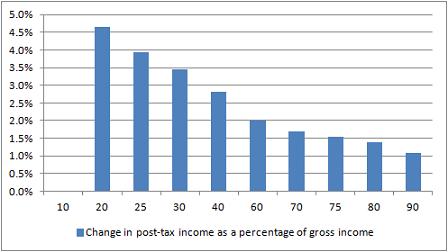
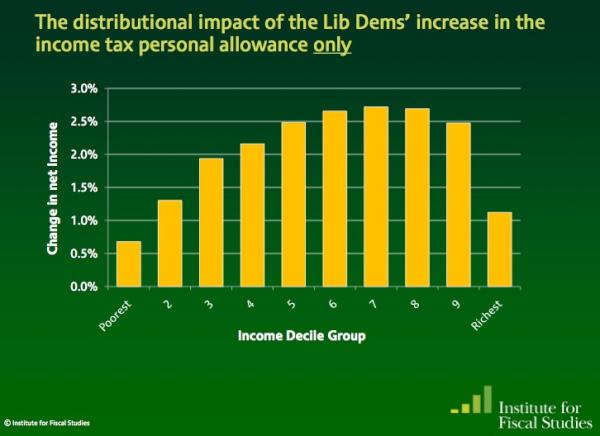
Here’s a great test for eagle-eyed journalists, tweeted by Guardian’s James Ball. It’s a tale of two charts that claim to show the impact of a change in the income tax threshold to £10,000. Here’s the first:

Change in post-tax income as a percentage of gross income

And here’s the second:

Net impact of income tax threshold change on incomes - IFS

So: same change, very different stories. In one story (Institute for Fiscal Studies) it is the the wealthiest that appear to benefit the most; but in the other (Taxpayers’ Alliance via Guido Fawkes) it’s the poorest who are benefiting.

Did you spot the difference? The different y axis is a slight clue – the first chart covers a wider range of change – but it’s the legend that gives the biggest hint: one is measuring change as a percentage of gross income (before, well, taxes); the other as a change in net income (after tax).

James’s colleague Mary Hamilton put it like this: “4.5% of very little is of course much less than 1% of loads.” Or, more specifically: 4.6% of £10,853 (the second decile mentioned in Fawkes’ post) is £499.24; 1.1% of £47,000 (the 9th decile according to the same ONS figures) is £517. (Without raw data, it’s hard to judge what figures are being used – if you include earnings over that £47k marker then it changes things, for example, and there’s no link to the net earnings).

In a nutshell, like James, I’m not entirely sure why they differ so strikingly. So, further statistical analysis welcome.

UPDATE: Seems a bit of a Twitter fight erupted between Guido Fawkes and James Ball over the source of the IFS data. James links to this pre-election document containing the chart and this one on ‘Budget 2011’. Guido says the chart’s “projections were based on policy forecasts that didn’t pan out”. I’ve not had the chance to properly scrutinise the claims of either James or Guido. I’ve also yet to see a direct link to the Taxpayers’ Alliance data, so that is equally in need of unpicking.

In this post, however, my point isn’t to do with the specific issue (or who is ‘right’) but rather how it can be presented in different ways, and the importance of having access to the raw data to ‘unspin’ it.

A new Scottish datablog (and a treemap in Liverpool)

The Scotsman has a newish data blog, set up (I’m rather proud to say) by one of my former PA/Telegraph trainees: Jennifer O’Mahony. This is particularly important as so much data covered in the ‘national’ press tends to be English-only due to devolution.

The Department of Education, for example, only publishes English education data. If you want Scottish education data you need to go to the Scottish Government website or Education ScotlandOfsted inspects schools in England; for Scottish schools reports you need to visit HM Inspectorate of Education. (Meanwhile, the National Statistics site, publishes data from England, Scotland, Wales and Northern Ireland).

So if there’s any Scottish data – or that of Wales or Northern Ireland – that you want me to help with, let me or Jennifer know. By way of illustrating the process, here’s a post over on Help Me Investigate: Education on how I helped Jennifer collect data on free school meals in Scotland.

A treemap in Liverpool

On the same note of non-national data journalism, here’s a particularly nice bit of data visualisation at the Liverpool Post. It’s not often you see treemaps on a local newspaper website – this one was designed by Ilan Sheady based on data gathered by City Editor David Bartlett after a day’s data journalism training.

Infographic showing the huge scale of the £5.5bn Liverpool Waters scheme


Word cloud or bar chart?

Bar charts preferred over word clouds

One of the easiest ways to get someone started on data visualisation is to introduce them to word clouds (it also demonstrates neatly how not all data is numerical).

Using tools like Wordle and Tagxedo, you can paste in a major speech and see it visualised within a minute or so.

But is a word cloud the best way of visualising speeches? The New York Times appear to think otherwise. Their visualisation (above) comparing President Obama’s State of the Union address and speeches by Republican presidential candidates chooses to use something far less fashionable: the bar chart.

Why did they choose a bar chart? The key is the purpose of the chart: comparison. If your objective is to capture the spirit of a speech, or its key themes, then a word cloud can still work well, if you clean the data (see this interactive example that appeared on the New York Times in 2009).

But if you want to compare it to speeches of others – and particularly if you want to compare on specific issues such as employment or tax – then bar charts are a better choice. Compare, for example, ReadWriteWeb’s comparison of inaugural speeches, and how effective that is compared to the bar charts.

In short, don’t always reach for the obvious chart type – and be clear what you’re trying to communicate.

UPDATE: More criticism of word clouds by New York Times software architect here (via Harriet Bailey)

Obama inaugural speech word cloud by ReadWriteWeb

Obama inaugural speech word cloud by ReadWriteWeb

via Flowing Data

Data journalism awards

Yesterday saw the launch of the first (surprisingly) international data journalism awards, backed by the European Journalism Centre*, Google, and the Global Editors Network.

There are 6 awards – 3 categories, each split into national/international and local/regional subcategories: investigative journalism; visualisation; and apps.

Each comes with prize money of 7,500 euros.

The closing date for entries is April 10. It’s particularly good to see a jury and pre-jury that isn’t dominated by Anglo-American traditional media, so if your work is unconventionally innovative it stands a decent chance of making it through. There’s also no specification on where your work is published, so students and independent journalists can enter.

The one thing I’d like to see in future years is the ‘visualisation and storytelling’ category expanded to include non-visual storytelling – there’s a tendency to reach for visualisation as a way to communicate data when other methods could be just as, or more, engaging.

*Declaration of interest: I am on the editorial board for the EJC’s Data Driven Journalism project.

SFTW: Scraping data with Google Refine

For the first Something For The Weekend of 2012 I want to tackle a common problem when you’re trying to scrape a collection of webpage: they have some sort of structure in their URL like this, where part of the URL refers to the name or code of an entity:

  1. http://www.ltscotland.org.uk/scottishschoolsonline/schools/freemealentitlement.asp?iSchoolID=5237521
  2. http://www.ltscotland.org.uk/scottishschoolsonline/schools/freemealentitlement.asp?iSchoolID=5237629
  3. http://www.ltscotland.org.uk/scottishschoolsonline/schools/freemealentitlement.asp?iSchoolID=5237823

In this instance, you can see that the URL is identical apart from a 7 digit code at the end: the ID of the school the data refers to.

There are a number of ways you could scrape this data. You could use Google Docs and the =importXML formula, but Google Docs will only let you use this 50 times on any one spreadsheet (you could copy the results and select Edit > Paste Special > Values Only and then use the formula a further 50 times if it’s not too many – here’s one I prepared earlier).

And you could use Scraperwiki to write a powerful scraper – but you need to understand enough coding to do so quickly (here’s a demo I prepared earlier).

A middle option is to use Google Refine, and here’s how you do it.

Assembling the ingredients

With the basic URL structure identified, we already have half of our ingredients. What we need  next is a list of the ID codes that we’re going to use to complete each URL.

An advanced search for “list seed number scottish schools filetype:xls” brings up a link to this spreadsheet (XLS) which gives us just that.

The spreadsheet will need editing: remove any rows you don’t need. This will reduce the time that the scraper will take in going through them. For example, if you’re only interested in one local authority, or one type of school, sort your spreadsheet so that you can delete those above or below them.

Now to combine  the ID codes with the base URL.

Bringing your data into Google Refine

Open Google Refine and create a new project with the edited spreadsheet containing the school IDs.

At the top of the school ID column click on the drop-down menu and select Edit column > Add column based on this column…

In the New column name box at the top call this ‘URL’.

In the Expression box type the following piece of GREL (Google Refine Expression Language):

http://www.ltscotland.org.uk/scottishschoolsonline/schools/freemealentitlement.asp?iSchoolID=”+value

(Type in the quotation marks yourself – if you’re copying them from a webpage you may have problems)

The ‘value’ bit means the value of each cell in the column you just selected. The plus sign adds it to the end of the URL in quotes.

In the Preview window you should see the results – you can even copy one of the resulting URLs and paste it into a browser to check it works. (On one occasion Google Refine added .0 to the end of the ID number, ruining the URL. You can solve this by changing ‘value’ to value.substring(0,7) – this extracts the first 7 characters of the ID number, omitting the ‘.0’) UPDATE: in the comment Thad suggests “perhaps, upon import of your spreadsheet of IDs, you forgot to uncheck the importer option to Parse as numbers?”

Click OK if you’re happy, and you should have a new column with a URL for each school ID.

Grabbing the HTML for each page

Now click on the top of this new URL column and select Edit column > Add column by fetching URLs…

In the New column name box at the top call this ‘HTML’.

All you need in the Expression window is ‘value’, so leave that as it is.

Click OK.

Google Refine will now go to each of those URLs and fetch the HTML contents. As we have a couple thousand rows here, this will take a long time – hours, depending on the speed of your computer and internet connection (it may not work at all if either isn’t very fast). So leave it running and come back to it later.

Extracting data from the raw HTML with parseHTML

When it’s finished you’ll have another column where each cell is a bunch of HTML. You’ll need to create a new column to extract what you need from that, and you’ll also need some GREL expressions explained here.

First you need to identify what data you want, and where it is in the HTML. To find it, right-click on one of the webpages containing the data, and search for a key phrase or figure that you want to extract. Around that data you want to find a HTML tag like <table class=”destinations”> or <div id=”statistics”>. Keep that open in another window while you tweak the expression we come onto below…

Back in Google Refine, at the top of the HTML column click on the drop-down menu and select Edit column > Add column based on this column…

In the New column name box at the top give it a name describing the data you’re going to pull out.

In the Expression box type the following piece of GREL (Google Refine Expression Language):

value.parseHtml().select(“table.destinations”)[0].select(“tr”).toString()

(Again, type the quotation marks yourself rather than copying them from here or you may have problems)

I’ll break down what this is doing:

value.parseHtml()

parse the HTML in each cell (value)

.select(“table.destinations”)

find a table with a class (.) of “destinations” (in the source HTML this reads <table class=”destinations”>. If it was <div id=”statistics”> then you would write .select(“div#statistics”) – the hash sign representing an ‘id’ and the full stop representing a ‘class’.

[0]

This zero in square brackets tells Refine to only grab the first table – a number 1 would indicate the second, and so on. This is because numbering (“indexing”) generally begins with zero in programming.

.select(“tr”)

Now, within that table, find anything within the tag <tr>

.toString()

And convert the results into a string of text.

The results of that expression in the Preview window should look something like this:

<tr> <th></th> <th>Abbotswell School</th> <th>Aberdeen City</th> <th>Scotland</th> </tr> <tr> <th>Percentage of pupils</th> <td>25.5%</td> <td>16.3%</td> <td>22.6%</td> </tr>

This is still HTML, but a much smaller and manageable chunk. You could, if you chose, now export it as a spreadsheet file and use various techniques to get rid of the tags (Find and Replace, for example) and split the data into separate columns (the =SPLIT formula, for example).

Or you could further tweak your GREL code in Refine to drill further into your data, like so:

value.parseHtml().select(“table.destinations”)[0].select(“td”)[0].toString()

Which would give you this:

<td>25.5%</td>

Or you can add the .substring function to strip out the HTML like so (assuming that the data you want is always 5 characters long):

value.parseHtml().select(“table.destinations”)[0].select(“td”)[0].toString().substring(5,10)

When you’re happy, click OK and you should have a new column for that data. You can repeat this for every piece of data you want to extract into a new column.

Then click Export in the upper right corner and save as a CSV or Excel file.

More on how this data was used on Help Me Investigate Education.