Tag Archives: visualisation

INFOGRAPHIC: UK riots – Gauging the Columnists Blame Game

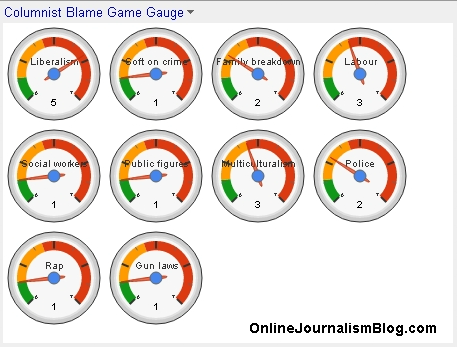
Here’s a quick experiment in data visualisation to provide an instant insight into a story on how the blame game is being played by columnists.

The data is taken from a Liberal Conspiracy blog post – I’ve transferred that into a spreadsheet with limited categories and used the Gauges gadget to visualise the totals.

A screengrab is below – but there is also an embed code that provides a gauge that will be updated whenever a new columnist is added. See the spreadsheet for both the gauge and the raw data.

Columnist Blame Game Gauge - UK Riots

Columnist Blame Game Gauge

In Spanish: The inverted pyramid of data journalism part 2

Mauro Accurso has followed up his rapid translation of last week’s inverted pyramid of data journalism with a Spanish version of part 2: the 6 C’s of communicating data journalism. It’s copied in full below.

La semana pasada les traduje la primera parte de La Pirámide Invertida del Periodismo de Datos de Paul Bradshaw que prometió extender en el aspecto de comunicación del extenso proceso que significa el periodismo de datos.

comunicar periodismo de datosEn esta segunda parte Paul recorre 6 formas diferentes de comunicar en periodismo de datos que pueden ver en el cuadro de arriba y al final encontrarán un gráfico que resume toda la teoría (la cual está en desarrollo todavía y Bradshaw pide aportes, comentarios y sugerencias):

Continue reading

6 ways of communicating data journalism (The inverted pyramid of data journalism part 2)

UPDATE: A new version of the inverted pyramid, with new stages and resources for each, is now available.

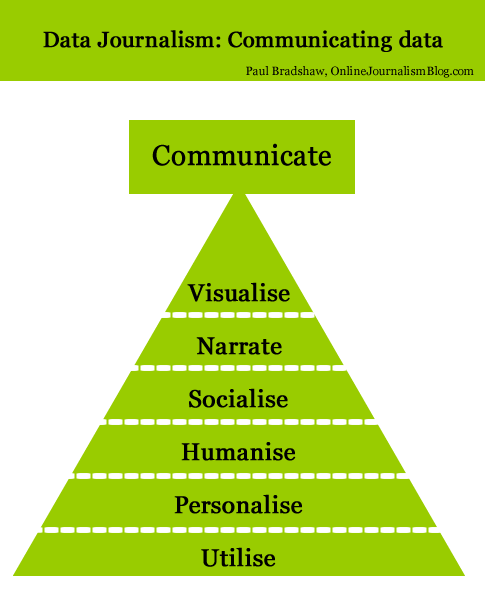
Last week I published an inverted pyramid of data journalism which attempted to map processes from initial compilation of data through cleaning, contextualising, and combining that. The final stage – communication – needed a post of its own, so here it is.

UPDATE: Now in Spanish too.

Below is a diagram illustrating 6 different types of communication in data journalism. (I may have overlooked others, so please let me know if that’s the case.)

Communicate: visualised, narrate, socialise, humanise, personalise, utilise

Modern data journalism has grown up alongside an enormous growth in visualisation, and this can sometimes lead us to overlook different ways of telling stories involving big numbers. The intention of the following is to act as a primer for ensuring all options are considered.
Continue reading

Visualising Twitter Friend Connections Using Gephi: An Example Using the @WiredUK Friends Network

To corrupt a well known saying, “cook a man a meal and he’ll eat it; teach a man a recipe, and maybe he’ll cook for you…”, I thought it was probably about time I posted the recipe I’ve been using for laying out Twitter friends networks using Gephi, not least because I’ve been generating quite a few network files for folk lately, giving them copies, and then not having a tutorial to point them to. So here’s that tutorial…

The starting point is actually quite a long way down the “how did you that?” chain, but I have to start somewhere, and the middle’s easier than the beginning, so that’s where we’ll step in (I’ll give some clues as to how the beginning works at the end…;-)

Here’s what we’ll be working towards: a diagram that shows how the people on Twitter that @wiredUK follows follow each other:

@wireduk innerfriends

The tool we’re going to use to layout this graph from a data file is a free, extensible, open source, cross platform Java based tool called Gephi. If you want to play along, download the datafile. (Or try with a network of your own, such as your Facebook network.)

From the Gephi file menu, Open the appropriate graph file:

Gephi - file open

Import the file as a Directed Graph:

Gephi - import directed graph

The Graph window displays the graph in a raw form:

Gephi -graph view of imported graph

Sometimes a graph may contain nodes that are not connected to any other nodes. (For example, protected Twitter accounts do not publish – and are not published in – friends or followers lists publicly via the Twitter API.) Some layout algorithms may push unconnected nodes far away from the rest of the graph, which can affect generation of presentation views of the network, so we need to filter out these unconnected nodes. The easiest way of doing this is to filter the graph using the Giant Component filter.

Gephi - filter on Giant Component

To colour the graph, I often make us of the modularity statistic. This algorithm attempts to find clusters in the graph by identifying components that are highly interconnected.

Gephi - modularity statistic

This algorithm is a random one, so it’s often worth running it several times to see how many communities typically get identified.

A brief report is displayed after running the statistic:

Gephi - modularity statistic report

While we have the Statistics panel open, we can take the opportunity to run another measure: the HITS algorithm. This generates the well known Authority and Hub values which we can use to size nodes in the graph.

Gephi - HITS statistic

The next step is to actually colour the graph. In the Partition panel, refresh the partition options list and then select Modularity Class.

Gephi - select modularity partition

Choose appropriate colours (right click on each colour panel to select an appropriate colour for each class – I often select pastel colours) and apply them to the graph.

Gephi - colour nodes by modularity class

The next thing we want to do is lay out the graph. The Layout panel contains several different layout algorithms that can be used to support the visual analysis of the structures inherent in the network; (try some of them – each works in a slightly different way; some are also better than others for coping with large networks). For a network this size and this densely connected,I’d typically start out with one of the force directed layouts, that positions nodes according to how tightly linked they are to each other.

Gephi select a layout

When you select the layout type, you will notice there are several parameters you can play with. The default set is often a good place to start…

Run the layout tool and you should see the network start to lay itself out. Some algorithms require you to actually Stop the layout algorithm; others terminate themselves according to a stopping criterion, or because they are a “one-shot” application (such as the Expansion algorithm, which just scales the x and y values by a given factor).

Gephi - forceAtlas 2

We can zoom in and out on the layout of the graph using a mouse wheel (on my MacBook trackpad, I use a two finger slide up and down), or use the zoom slider from the “More options” tab:

Gephi zoom

To see which Twitter ID each node corresponds to, we can turn on the labels:

Gephi - labels

This view is very cluttered – the nodes are too close to each other to see what’s going on. The labels and the nodes are also all the same size, giving the same visual weight to each node and each label. One thing I like to do is resize the nodes relative to some property, and then scale the label size to be proportional to the node size.

Here’s how we can scale the node size and then set the text label size to be proportional to node size. In the Ranking panel, select the node size property, and the attribute you want to make the size proportional to. I’m going to use Authority, which is a network property that we calculated when we ran the HITS algorithm. Essentially, it’s a measure of how well linked to a node is.

Gephi - node sizing

The min size/max size slider lets us define the minimum and maximum node sizes. By default, a linear mapping from attribute value to size is used, but the spline option lets us use a non-linear mappings.

Gephi - node sizing spilne

I’m going with the default linear mapping…

Gephi - size nodes

We can now scale the labels according to node size:

Gephi - scale labels

Note that you can continue to use the text size slider to scale the size of all the displayed labels together.

This diagram is now looking quite cluttered – to make it easier to read, it would be good if we could spread it out a bit. The Expansion layout algorithm can help us do this:

Gephi - expansion

A couple of other layout algorithms that are often useful: the Transformation layout algorithm lets us scale the x and y axes independently (compared to the Expansion algorithm, which scales both axes by the same amount); and the Clockwise Rotate and Counter-Clockwise Rotate algorithm lets us rotate the whole layout (this can be useful if you want to rotate the graph so that it fits neatly into a landscape view.

The expanded layout is far easier to read, but some of the labels still overlap. The Label Adjust layout tool can jiggle the nodes so that they don’t overlap.

gephi - label adjust

(Note that you can also move individual nodes by clicking on them and dragging them.)

So – nearly there… The final push is to generate a good quality output. We can do this from the preview window:

Gephi preview window

The preview window is where we can generate good quality SVG renderings of the graph. The node size, colour and scaled label sizes are determined in the original Overview area (the one we were working in), although additional customisations are possible in the Preview area.

To render our graph, I just want to make a couple of tweaks to the original Default preview settings: Show Labels and set the base font size.

Gephi - preview settings

Click on the Refresh button to render the graph:

Gephi - preview refresh

Oops – I overdid the font size… let’s try again:

gephi - preview resize

Okay – so that’s a good start. Now I find I often enter into a dance between the Preview ad Overview panels, tweaking the layout until I get something I’m satisfied with, or at least, that’s half-way readable.

How to read the graph is another matter of course, though by using colour, sizing and placement, we can hopefully draw out in a visual way some interesting properties of the network. The recipe described above, for example, results in a view of the network that shows:

– groups of people who are tightly connected to each other, as identified by the modularity statistic and consequently group colour; this often defines different sorts of interest groups. (My follower network shows distinct groups of people from the Open University, and JISC, the HE library and educational technology sectors, UK opendata and data journalist types, for example.)
– people who are well connected in the graph, as displayed by node and label size.

Here’s my final version of the @wiredUK “inner friends” network:

@wireduk innerfriends

You can probably do better though…;-)

To recap, here’s the recipe again:

– filter on connected component (private accounts don’t disclose friend/follower detail to the api key i use) to give a connected graph;
– run the modularity statistic to identify clusters; sometimes I try several attempts
– colour by modularity class identified in previous step, often tweaking colours to use pastel tones
– I often use a force directed layout, then Expansion to spread to network out a bit if necessary; the Clockwise Rotate or Counter-Clockwise rotate will rotate the network view; I often try to get a landscape format; the Transformation layout lets you expand or contract the graph along a single axis, or both axes by different amounts.
– run HITS statistic and size nodes by authority
– size labels proportional to node size
– use label adjust and expand to to tweak the layout
– use preview with proportional labels to generate a nice output graph
– iterate previous two steps to a get a layout that is hopefully not completely unreadable…

Got that?!;-)

Finally, to the return beginning. The recipe I use to generate the data is as follows:

  1. grab a list of twitter IDs (call it L); there are several ways of doing this, for example: obtain a list of tweets on a particular topic by searching for a particular hashtag, then grab the set of unique IDs of people using the hashtag; grab the IDs of the members of one or more Twitter lists; grab the IDs of people following or followed by a particular person; grab the IDs of people sending geo-located tweets in a particular area;
  2. for each person P in L, add them as a node to a graph;
  3. for each person P in L, get a list of people followed by the corresponding person, e.g. Fr(P)
  4. for each X in e.g. Fr(P): if X in Fr(P) and X in L, create an edge [P,X] and add it to the graph
  5. save the graph in a format that can be visualised in Gephi.

To make this recipe, I use Tweepy and a Python script to call the Twitter API and get the friends lists from there, but you could use the Google Social API to get the same data. There’s an example of calling that API using Javscript in my “live” Twitter friends visualisation script (Using Protovis to Visualise Connections Between People Tweeting a Particular Term) as well as in the A Bit of NewsJam MoJo – SocialGeo Twitter Map.

First Play With R and R-Studio – F1 Lap Time Box Plots

Last summer, at the European Centre for Journalism round table on data driven journalism, I remember saying something along the lines of “your eyes can often do the stats for you”, the implication being that our perceptual apparatus is good at pattern detection, and can often see things in the data that most of us would miss using the very limited range of statistical tools that we are either aware of, or are comfortable using.

I don’t know how good a statistician you need to be to distinguish between Anscombe’s quartet, but the differences are obvious to the eye:

Anscombe's quartet /via Wikipedia

Another shamistician (h/t @daveyp) heuristic (or maybe it’s a crapistician rule of thumb?!) might go something along the lines of: “if you use the right visualisations, you don’t necessarily need to do any statistics yourself”. In this case, the implication is that if you choose a viualisation technique that embodies or implements a statistical process in some way, the maths is done for you, and you get to see what the statistical tool has uncovered.

Now I know that as someone working in education, I’m probably supposed to uphold the “should learn it properly” principle… But needing to know statistics in order to benefit from the use of statistical tools seems to me to be a massive barrier to entry in the use of this technology (statistics is a technology…) You just need to know how to use the technology appropriately, or at least, not use it “dangerously”…

So to this end (“democratising access to technology”), I thought it was about time I started to play with R, the statistical programming language (and rival to SPSS?) that appears to have a certain amount of traction at the moment given the number of books about to come out around it… R is a command line language, but the recently released R-Studio seems to offer an easier way in, so I thought I’d go with that…

Flicking through A First Course in Statistical Programming with R, a book I bought a few weeks ago in the hope that the osmotic reading effect would give me some idea as to what it’s possible to do with R, I found a command line example showing how to create a simple box plot (box and whiskers plot) that I could understand enough to feel confident I could change…

Having an F1 data set/CSV file to hand (laptimes and fuel adjusted laptimes) from the China 2001 grand prix, I thought I’d see how easy it was to just dive in… And it was 2 minutes easy… (If you want to play along, here’s the data file).

Here’s the command I used:
boxplot(Lap.Time ~ Driver, data=lapTimeFuel)

Remembering a comment in a Making up the Numbers blogpost (Driver Consistency – Bahrain 2010) about the effect on laptime distributions from removing opening, in and out lap times, a quick Google turned up a way of quickly stripping out slow times. (This isn’t as clean as removing the actual opening, in and out lap times – it also removes mistake laps, for example, but I’m just exploring, right? Right?!;-)

lapTime2 <- subset(lapTimeFuel, Lap.Time < 110.1)

I could then plot the distribution in the reduced lapTime2 dataset by changing the original boxplot command to use (data=lapTime2). (Note that as with many interactive editors, using your keyboard’s up arrow displays previously entered commands in the current command line; so you can re-enter a previously entered command by hitting the up arrow a few times, then entering return. You can also edit the current command line, using the left and right arrow keys to move the cursor, and the delete key to delete text.)

Prior programming experience suggests this should also work…

boxplot(Lap.Time ~ Driver, data=subset(lapTimeFuel, Lap.Time < 110))

Something else I tried was to look at the distribution of fuel weight adjusted laptimes (where the time penalty from the weight of the fuel in the car is removed):

boxplot(Fuel.Adjusted.Laptime ~ Driver, data=lapTimeFuel)

Looking at the release notes for the latest version of R-Studio suggests that you can build interactive controls into your plots (a bit like Mathematica supports?). The example provided shows how to change the x-range on a plot:
manipulate(
plot(cars, xlim=c(0,x.max)),
x.max=slider(15,25))

Hmm… can we set the filter value dynamically I wonder?

manipulate(
boxplot(Lap.Time ~ Driver, data=subset(lapTimeFuel, Lap.Time < maxval)),
maxval=slider(100,140))

Seems like it…?:-) We can also combine interactive controls:

manipulate(boxplot(Lap.Time ~ Driver, data=subset(lapTimeFuel, Lap.Time < maxval),outline=outline),maxval=slider(100,140),outline = checkbox(FALSE, "Show outliers"))

Okay – that’s enough for now… I reckon that with a handful of commands on a crib sheet, you can probably get quite a lot of chart plot visualisations done, as well as statistical visualisations, in the R-Studio environment; it also seems easy enough to build in interactive controls that let you play with the data in a visually interactive way…

The trick comes from choosing visual statistics approaches to analyse your data that don’t break any of the assumptions about the data that the particular statistical approach relies on in order for it to be applied in any sensible or meaningful way.

[This blog post is written, in part, as a way for me to try to come up with something to say at the OU Statistics Group’s one day conference on Visualisation and Presentation in Statistics. One idea I wanted to explore was: visualisations are powerful; visualisation techniques may incorporate statistical methods or let you “see” statistical patterns; most people know very little statistics; that shouldnlt stop them being able to use statistics as a technology; so what are we going to do about it? Feedback welcome… Err….?!]

UK Journalists on Twitter

A post on the Guardian Datablog earlier today took a dataset collected by the Tweetminster folk and graphed the sorts of thing that journalists tweet about ( Journalists on Twitter: how do Britain’s news organisations tweet?).

Tweetminster maintains separate lists of tweeting journalists for several different media groups, so it was easy to grab the names on each list, use the Twitter API to pull down the names of people followed by each person on the list, and then graph the friend connections between folk on the lists. The result shows that the hacks are follow each other quite closely:

UK Media Twitter echochamber (via tweetminster lists)

Nodes are coloured by media group/Tweetminster list, and sized by PageRank, as calculated over the network using the Gephi PageRank statistic.

The force directed layout shows how folk within individual media groups tend to follow each other more intensely than they do people from other groups, but that said, inter-group following is still high. The major players across the media tweeps as a whole seem to be @arusbridger, @r4today, @skynews, @paulwaugh and @BBCLauraK.

I can generate an SVG version of the chart, and post a copy of the raw Gephi GDF data file, if anyone’s interested…

PS if you’re interested in trying out Gephi for yourself, you can download it from gephi.org. One of the easiest ways in is to explore your Facebook network

PPS for details on how the above was put together, here’s a related approach:
Trying to find useful things to do with emerging technologies in open education
Doodlings Around the Data Driven Journalism Round Table Event Hashtag Community
.

For a slightly different view over the UK political Twittersphere, see Sketching the Structure of the UK Political Media Twittersphere. And for the House and Senate in the US: Sketching Connections Between US House and Senate Tweeps

A First Quick Viz of UK University Fees

Regular readers will know how I do quite like to dabble with visual analysis, so here are a couple of doodles with some of the university fees data that is starting to appear.

The data set I’m using is a partial one, taken from the Guardian Datastore: Tuition fees 2012: what are the universities charging?. (If you know where there’s a full list of UK course fees data by HEI and course, please let me know in a comment below, or even better, via an answer to this Where’s the fees data? question on GetTheData.)

My first thought was to go for a proportional symbol map. (Does anyone know of a javascript library that can generate proportional symbol overlays on a Google Map or similar, even better if it can trivially pull in data from a Google spreadsheet via the Google visualisation? I have an old hack (supermarket catchment areas), but there must be something nicer to use by now, surely? [UPDATE: ah – forgot this: Polymaps])

In the end, I took the easy way out, and opted for Geocommons. I downloaded the data from the Guardian datastore, and tidied it up a little in Google Refine, removing non-numerical entries (including ranges, such 4,500-6,000) in the Fees column and replacing them with minumum fee values. Sorting the fees column as a numerical type with errors at the top made the columns that needed tweaking easy to find:

The Guardian data included an address column, which I thought Geocommons should be able to cope with. It didn’t seem to work out for me though (I’m sure I checked the UK territory, but only seemed to get US geocodings?) so in the end I used a trick posted to the OnlineJournalism blog to geocode the addresses (Getting full addresses for data from an FOI response (using APIs); rather than use the value.parseJson().results[0].formatted_address construct, I generated a couple of columns from the JSON results column using value.parseJson().results[0].geometry.location.lng and value.parseJson().results[0].geometry.location.lat).

Uploading the data to Geocommons and clicking where prompted, it was quite easy to generate this map of the fees to date:

Anyone know if there’s a way of choosing the order of fields in the pop-up info box? And maybe even a way of selecting which ones to display? Or do I have to generate a custom dataset and then create a map over that?

What I had hoped to be able to do was use coloured proportional symbols to generate a two dimensional data plot, e.g. comparing fees with drop out rates, but Geocommons doesn’t seem to support that (yet?). It would also be nice to have an interactive map where the user could select which numerical value(s) are displayed, but again, I missed that option if it’s there…

The second thing I thought I’d try would be an interactive scatterplot on Many Eyes. Here’s one view that I thought might identify what sort of return on value you might get for you course fee…;-)

Click thru’ to have a play with the chart yourself;-)

PS I can;t not say this, really – you’ve let me down again, @datastore folks…. where’s a university ID column using some sort of standard identifier for each university? I know you have them, because they’re in the Rosetta sheet… although that is lacking a HESA INST-ID column, which might be handy in certain situations… 😉 [UPDATE – apparently, HESA codes are in the spreadsheet…. ;-0]

PPS Hmm… that Rosetta sheet got me thinking – what identifier scheme does the JISC MU API use?

PPPS If you’re looking for a degree, why not give the Course Detective search engine a go? It searches over as many of the UK university online prospectus web pages that we could find and offer up as a sacrifice to a Google Custom search engine 😉

Visualising data with the Datapress WordPress plugin

{{Exhibit}} {{Footnotes}}

Here’s a useful plugin for bloggers working with data: Datapress allows you to quickly visualise a dataset as a table, timeline, scatter plot, bar chart, ‘intelligent list’ (allowing you to sort by more than one value at once – see this example) or map.

Once installed, the plugin adds a new button to the ‘Upload/Insert’ row in the post edit view which you can click to link to a dataset in the same way as you would embed an image or video.

The plugin is in beta at the moment and takes a bit of getting used to. There’s a convention you have to follow in naming Google spreadsheet columns, for example – this Glasgow Vegan Guide spreadsheet has quite a few of them – but this could add some new visualisation possibilities. It seems particularly nice for lists and maps (if you have lat-long values), although Google spreadsheet’s built-in charts options will obviously be quicker for simple graphs and charts.

UPDATE: I’ve also just learned that the large empty space below the table can be fixed under the ‘Configure Display’ tab in the editing view.

The plugin has a demo site with some impressive examples and the developers are happy to help with any problems. It’s also up for the Knight News Challenge if you want to support it.